Why Does Your LinkedIn Profile Matter to Recruiters?
Your LinkedIn profile matters because recruiters use it to find and check candidates. It works like a CV that anyone can search at any time. A clear profile can bring opportunities to you. A weak profile can hide you from the people who are hiring.
Many recruiters look at a candidate’s LinkedIn profile before they call or invite them to interview. This is true even when you apply through a job board. If you have been wondering why it feels so hard to find a job, an incomplete profile that does not match your CV is often part of the problem.
LinkedIn has said that more than 20 million professionals, including recruiters and hiring managers, use its search every week. That figure comes from LinkedIn and is a few years old. It still shows how busy the platform is.
Your profile also does more than a CV. A CV goes to one employer at a time. Your profile works for you all day, even while you sleep. People you have never met can find it.
There is a new reason to take care, too. Employers are adding AI tools to everyday work. Many want staff who can learn new tools quickly. Your profile is a good place to show that. We cover this later in the guide.
How Do Recruiters Search for Candidates on LinkedIn?
Recruiters type keywords into LinkedIn search. They then add filters such as job title, skills, location and industry. LinkedIn shows a list of matching profiles. If your profile lacks the right words, you may not appear in the results at all.
Think of it like searching on Google. A recruiter might type “office administrator Leeds”. They will see people who use those words and live near Leeds. If your headline says “Hard-working professional”, you may miss out. The recruiter never typed those words.
Many recruiters use a paid tool called LinkedIn Recruiter. It lets them filter by skills, location and more. Some recruiters use the free search instead. Either way, the words on your profile decide whether you appear.
LinkedIn looks for keywords in several places. These include your headline, About section, job titles, skills and experience descriptions. That is why Steps 2 to 5 matter so much.
There is also a setting called Open to Work. It tells recruiters that you are open to new roles. You can show it to everyone or only to recruiters. We explain how in Step 8.
What Do Recruiters Notice in the First Few Seconds?
Recruiters first notice your photo, name, headline and current role. Next, they skim the opening lines of your About section. They decide fast whether to read more. Everything else supports that first impression. So make these top areas clear, specific and honest.
Search results show only a small part of your profile. A recruiter sees your photo, name, headline, location and current job. That small preview decides whether they click.
On your full profile, the About section shows only a few lines until the reader taps “see more”. Mobile screens show even less. So your first sentence must earn the click.
Think of the top of your profile as a shop window. A recruiter should be able to answer three questions in seconds. What do you do? Where are you based? Are you right for the role I am hiring?
Recruiters often look at many profiles in one sitting. Clear, simple profiles are easy to scan. Long, vague profiles get skipped.
What Should You Do Before You Start Editing?
Before you edit, pick one target role. Then collect 10 to 15 job adverts for that role. Note the skills and words that keep repeating. Draft your text in a separate document first. This gives you a clear goal and the right keywords.
Pick one target role. Be specific. “Marketing coordinator” is better than “something in marketing”. If you want several roles, choose the main one for now.
Collect job adverts. Save 10 to 15 adverts from sites such as LinkedIn Jobs, Indeed and Reed. Choose roles you would like to apply for.
Find repeating words. Look for job titles, tools and skills that appear again and again. Examples are “SEO”, “Microsoft 365”, “stakeholder management” and “customer service”. Write 8 to 12 of them in a list.
Use only honest keywords. Add words that describe you. Do not copy skills you do not have. Recruiters will test them at interviews.
List your best results. Write down five achievements. Add numbers where you can, such as time saved, money earned or people helped.
Draft offline. Write in Word or Notes first. Check your spelling. Then paste the text into LinkedIn.
What Are the 10 Steps to Optimize Your LinkedIn Profile for Recruiters?
There are 10 steps to optimize your LinkedIn profile for recruiters. Start at the top of your profile and work down. Each step takes about 10 to 20 minutes. Most people can finish the full list in one or two sittings. Do the first four steps first, because recruiters see them first.
Step 1: Choose a Clear, Professional Photo and Banner
Use a clear, recent photo of your face with a simple background. Add a banner that shows your field or specialism. LinkedIn reports that members with a photo get up to 21 times more profile views. They also get 9 times more connection requests.
Do this: Use a head-and-shoulders shot. Face the camera and smile. Use natural light from a window. Wear what you would wear to the job. A recent phone photo works well. Ask a friend to take it. Avoid filters, sunglasses, group shots and cropped holiday pictures.
Next, add a banner. Free design tools such as Canva have LinkedIn-sized templates, and a short AI and Canva design course can help if you want to create polished visuals quickly. Add a short line about your specialism or the value you offer.
Example: A marketing specialist uses a plain-wall photo. Her banner reads “Content and Social Media Marketing | Manchester”.
Why it works: A photo builds trust. People are more likely to click on a profile with a face. A banner shows your focus before anyone reads a word.
Step 2: Write a Keyword-Rich Headline
Your headline can be up to 220 characters. Use it to state your job title, key skills and who you help. Put your most important words first. Recruiters see your headline in search results, so it works like a shop sign.
Do this: Use a simple formula. Write your job title, then two or three key skills, then your niche or result. Separate each part with a vertical bar.
Use words from your keyword list. Avoid vague words such as “passionate”, “guru” or “ninja”. Do not write only “Seeking opportunities”. That tells recruiters nothing.
Why it works: LinkedIn search reads your headline. It also appears next to your name in comments and messages. Strong words here help you get found and clicked.
Step 3: Write an About Section That Tells Your Story
Your About section can be up to 2,600 characters, which is roughly 400 words. Write in the first person. Open with a strong first line. Then add proof, key skills and a clear next step. A length of 1,200 to 2,000 characters works well for most people.
Do this: Follow a simple four-part structure.
Hook. Say who you help and what you do in one or two lines.
Proof. Share three short achievements with numbers.
Skills. Mention your main tools and keywords in a natural way.
Next step. Say what you want next and how to reach you.
Use short paragraphs. Use “I” and “my”. Write as you speak, but keep it professional.
Why it works: Most readers see only the first few lines before “see more”. A clear opening keeps them reading. Keywords in this section also help search.
Step 4: Turn Your Experience Into Achievements
List your results, not just your duties. For each role, write three to five short lines. Start each with an action verb. Add a number where you can. Make sure your current job is included, because recruiters search for it.
Do this: Use this pattern: action, task, result. If you have no hard numbers, show scale or speed. For example, say how many people you served or how often you did a task.
Match your job titles and dates to your CV. Choose your employer from LinkedIn’s company list. Then its logo will appear. If you are self-employed, add your business name or “Freelance” and list your key projects. If you have a career gap, add courses, volunteering or projects.
Why it works: Results show what you can do for the next employer. LinkedIn data reported by Social Media Today adds more. Members with a current position are found up to 16 times more in recruiter searches.
Step 5: Add and Pin the Right Skills
Add at least five skills, and up to 50. Put your best skills at the top. Choose skills that appear in your target job adverts. LinkedIn has reported that members with more than five skills are up to 27 times more likely to be found. This is in recruiter searches.
Do this: Open your Skills section and click the plus icon. Add skills from your keyword list. Mix three types. Add job skills, such as budgeting or SEO. Add tools, such as Excel or Canva. Add people skills, such as communication and teamwork.
Pin or reorder your top skills so the best ones show first. Ask colleagues to endorse them. Only add skills you can talk about in an interview.
If you use AI tools for office work, add them too. Examples are “Generative AI” and “ChatGPT”. Be ready to explain how you use them.
Example: An administrator pins Microsoft 365, Scheduling and Customer Service. She then adds Minute-taking, Data Entry and Generative AI.
Why it works: Skills act as search filters. Recruiters often filter by them. No skills can mean no match.
Step 6: Ask for Recommendations and Endorsements
Ask two or three people to write a short recommendation. Choose a manager, a colleague or a client. Praise from others is more believable than praise from you. Make it easy by asking for specific points. Offer to write one in return.
Do this: Visit the person’s profile. Open the More menu and choose Request a recommendation. Menu names can change slightly. Add a short, friendly note.
Ask for specifics, such as results, teamwork or reliability. Never pay for recommendations. Never swap fake ones.
Why it works: Recommendations give recruiters proof from other people. They also add fresh words to your profile.
Step 7: Customise Your URL and Contact Details
Change your LinkedIn web address to a short, clean version, such as linkedin.com/in/yourname. Then check your contact details and location. Add a professional email and a portfolio link. Use the same URL on your CV and email signature. A clear location helps you appear in local searches.
Do this: On a desktop computer, click “Edit public profile & URL” on your profile page. Under “Edit your custom URL”, choose a clean version of your name. If it is taken, add your job title or a number.
In Contact info, add a professional email. Add a website or portfolio if you have one. Keep personal details, such as your home address, off your profile.
Set your location to your city or region, especially if you are finding a job in a new city. LinkedIn data, reported by Social Media Today, shows an effect. Members who list a city appear in up to 23 times more searches.
Why it works: A clean URL looks neat and is easy to share. A correct location puts you in front of local recruiters.
Step 8: Switch On “Open to Work” for Recruiters Only
Open to Work tells recruiters you want new roles. You can show it to all LinkedIn members or to recruiters only. If you are employed, choose recruiters only. LinkedIn says it tries to hide your status from recruiters at your company, but it cannot promise complete privacy.
Do this: Go to your profile and find the Open to Work box. If you do not see it, click “Open to” and choose “Finding a new job”. Add the job titles you want. Add locations and work types, such as on-site, hybrid or remote. Add your start date. Then choose who can see it.
Choose job titles that match your keyword list.
“All LinkedIn members” adds a green photo frame. Your whole network can see it. This includes people at your current company. “Recruiters only” adds no frame. Only people using LinkedIn Recruiter see your status.
Step 9: Complete Education, Certifications, Courses and Featured
Fill in your education, certifications and courses. Add a Featured section with your best work. These sections prove your skills and show that you keep learning. Relevant training, including in-demand AI certifications, is well worth adding. Keep only items that match your target role.
Do this: Add your degree, college or training provider and dates. Under licences and certifications, add the name, issuer, date and credential link. Add relevant short courses. Add volunteering if it shows useful skills.
In Featured, pin a portfolio, a report, a presentation, an article or a certificate. Use a clear title for each item. Add certificates only when they match your goals. Too many unrelated ones can distract recruiters.
Example: A job seeker lists a Google Analytics certificate, an online AI skills course and a short volunteer project. She pins a one-page case study in Featured.
Why it works: Recruiters want proof of current skills. Dated courses show that you keep learning. A Featured item lets them see your work in one click.
Step 10: Stay Active With Connections, Posts and Comments
Spend 10 to 15 minutes on LinkedIn a few times a week. Connect with people in your field. Comment on posts. Share one short lesson now and then. You do not need to post every day. Activity keeps your profile visible and shows how you think and communicate.
Do this: Send connection requests with a short note. Say why you want to connect. Follow companies you would like to work for. Comment with a useful point, not just “Great post”. Once a week, share a tip, a lesson or a small win from your work.
Keep your tone friendly and professional. Do not send the same message to hundreds of people.
Why it works: Active members are easier to notice. Recruiters can also see how you speak about your work. Over time, your network can bring job leads and introductions.
How Can You Use AI to Improve Your Profile Without Sounding Robotic?

Use AI to plan and edit, not to write your whole profile. AI can find keywords, fix the blank page and tighten your wording. You must add your real facts and your own voice. Always check the result before you post it.
You do not need advanced skills to do this. A free tool such as ChatGPT is enough. Here are three safe ways to use it.
1. Find keywords. Paste in several job adverts and ask AI to list the common skills.
2. Draft headline options. Give AI your job title and skills. Ask for a few choices.
3. Tighten your About section. Paste your own draft. Ask AI to make it shorter and clearer.
Now for the limits. AI can invent facts, so check every claim. It can also produce generic phrases that sound the same for everyone. Recruiters read many profiles, so they notice stock wording. Add real numbers and real examples. Read your text aloud. If it does not sound like you, rewrite it.
Protect your privacy too. Do not paste your phone number, home address or private company data into a chat. Remove client names before you share work examples.
AI can also be a skill on your profile. You can enrol in our course named Master 9 AI Skills That Will Define 2026 if you use AI at work. For example, you might write: “Used AI tools to draft reports, saving about two hours a week.” Only write this if it is true. Be ready to explain it at the interview.
How Should You Tailor Your Profile to Your Role?
Tailor your profile to the role you want. Your headline, skills and proof should match what employers in that role look for. A marketer needs campaign results. An administrator needs accuracy and tools. A job seeker needs training and projects. The table below gives you a starting point.
Pick the row closest to you. Then change the words to match your own job adverts.
If you are changing careers or planning your next step up, combine your profile updates with clear career advancement strategies. Write for the job you want, not the job you had. Show transferable skills such as communication, planning and problem-solving, and add a course or project that proves your new direction.
What LinkedIn Mistakes Make Recruiters Skip Your Profile?
The most common mistakes are a vague headline, an empty About section, a list of duties and keyword stuffing. Other errors include typos, old photos and mass connection requests. Fixing these quickly can make your profile easier for recruiters to read and trust.
A generic headline. A headline such as “Looking for new opportunities” says little. Use your job title and skills instead.
An empty About section. Leaving it blank wastes your best space. Write a short, clear summary.
A list of duties. Duties show what you were given. Results show what you did. Choose results.
Keyword stuffing. Do not fill your profile with repeated words. It reads badly, and recruiters notice. Use each keyword naturally.
Writing in the third person. A line such as “Alex is a skilled marketer” feels distant. Use “I”. It sounds warmer and more honest.
Typos and mismatched dates. Spelling errors suggest poor attention to detail. Dates that differ from your CV raise questions.
An old or unprofessional photo. A photo from ten years ago can confuse recruiters. Use a recent one.
Mass connection requests. Sending requests to hundreds of strangers with no note looks spammy. Send fewer, better requests.
Robotic AI text. Copy-pasted AI text often sounds generic. Edit it until it sounds like you.
How Can You Stay Private and Safe While Job Hunting?
Use the recruiters-only setting for Open to Work if you are employed. Check your profile visibility settings. Turn off activity sharing while you edit. Also learn the signs of fake recruiters. Never pay for a job, and never share bank or ID details early.
Keep your search discreet. Recruiters-only mode hides the green frame from your network. LinkedIn says it tries to hide your status from recruiters at your company. It cannot guarantee this. Make sure your current job points to your real company page. That helps LinkedIn hide your status correctly.
Control what your network sees. Before you make big edits, find the setting called “Share profile updates with your network”. Turn it off. Then your connections will not see every change.
Spot fake recruiters. Warning signs include requests for money and early requests for bank or passport details. Others are a free email address and a push to move to WhatsApp or Telegram at once. Be careful with offers that seem too good to be true.
Check before you reply. Look at the recruiter’s profile and history. Visit the company’s official website. Use the main phone number there to confirm the role.
Report scams. Use the Report option on the profile or message. If you lost money, tell your bank. Report it to Report Fraud (the UK’s national fraud reporting service) too.
Think before you post. Do not share private work details, client names or company plans. Your profile is public, and recruiters read it carefully.
How Do You Know If Your Profile Is Working?
Check your LinkedIn analytics to see if your profile works. Look at profile views, search appearances and recruiter messages. Note your numbers each week. If they stay low, change one thing at a time and test again.
LinkedIn shows your profile views and search appearances on your profile dashboard. Free accounts may show less detail than Premium accounts. Write your starting numbers in a notebook. Then check again each week.
If views are low: Check your headline keywords. Add more relevant skills. Confirm your location and current role. Post or comment a few times a week.
If views are high but messages are low: Your top section may not be convincing. Improve your first About line. Add stronger results. Ask for another recommendation.
If you get messages but no interviews: Check that your profile matches your CV. Reply fast and politely, and prepare for a phone interview so you are ready when a recruiter calls. Ask each recruiter what the role needs, then adjust your profile.
Change one thing at a time. Give each change two weeks. Then you will know what helped.
How Often Should You Update Your LinkedIn Profile?
Do a quick 10-minute check every month. Do a full review every three to six months. Update your profile after any new job, course, certificate or big result. If you are job hunting, check it weekly. Fresh details show that you are active and current.
Monthly check. Read your headline and About section. Do they still match your goals? Add new skills or wins. Look at your analytics.
Every three to six months. Compare your profile with fresh job adverts. Job titles and skills change fast, especially with AI. Update your keywords. Refresh your banner and Featured items.
After key events. Add new roles, promotions and certificates within a week. It is easier to write while the details are fresh.
Before a job search. Run through the full 10-step checklist again. Then switch on Open to Work.
How Does Your LinkedIn Profile Work With Your CV?
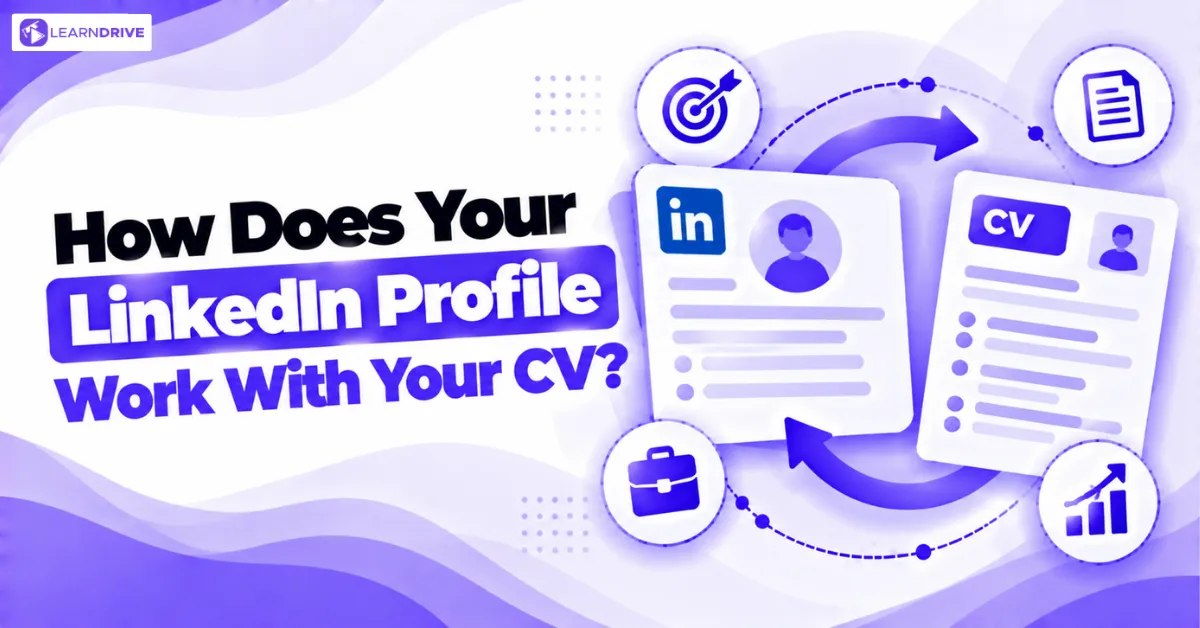
Your LinkedIn profile and your CV should tell the same story. They do different jobs, though. LinkedIn is searchable and broad. Your CV is short and tailored to one job. Keep titles, dates and employers the same on both. Add your LinkedIn URL to your CV.
Length. UK CVs are usually one or two pages, which means deciding carefully how many jobs to list on your CV . Your LinkedIn profile can be longer. It can include more projects, recommendations and courses.
Tone. A CV is formal and brief. LinkedIn can be warmer and use “I”.
Photo. UK CVs usually do not include a photo. LinkedIn profiles should.
Targeting. Change your CV for each job. Keep your LinkedIn profile focused on your main target role.
Consistency. Recruiters compare the two. Different dates or job titles raise doubts. Check both before you apply.
Do not copy and paste your CV into LinkedIn. Rewrite it in a friendlier, more complete way.
What Is the Quick 10-Step Checklist Recap?
Use this quick checklist to review your progress. Tick each box when the step is done. Save or print it. Work from top to bottom, because the first steps have the biggest effect on what recruiters see. Come back every few months to repeat the check.