
10 AI Tools for Office Work_ Your Ultimate Blueprint for Unstoppable Productivity

10 AI Tools for Office Work: Your Ultimate Blueprint for Unstoppable Productivity

The average office worker switches between apps dozens of times a day. They check email, update a calendar, fill out a form, and dig through old notes for one file. Then they jump back into a browser tab that got buried an hour ago. None of this is hard work on its own. It is just slow work, done over and over.

And it quietly eats hours out of every single week. That time does not show up on a task list. It is not a “project” you can point to at the end of the day. It is the twenty seconds spent hunting for one email.

It is the five minutes going back and forth to find a meeting time that works. It is the ten minutes rebuilding a form you have already built before. Multiply that across a week, a month, or a year, and it quietly undermines even the most disciplined work time management strategies.

AI tools are starting to close that gap. Not by replacing your job or your judgment. But by taking over the repetitive parts of it instead. They sort your inbox before you even open it. 

They fill out forms in seconds instead of minutes. They schedule meetings without a single back and forth email. They pull scattered notes into one searchable place. 

They turn one piece of content into five different formats without starting from scratch each time. None of that requires you to change how you work. It just removes the parts of work that never needed a human in the first place.

Here are 10 AI tools built for exactly that. These are tools for real office tasks, not hype. You will see what each one actually does. You will see how they stack up against each other. And you will see how to figure out which ones are actually worth adding to your workflow

Table of Contents

Only £1  £249
All-Access Course Bundle
Unlock 100+ CPD-accredited courses for just £1. Industry-recognised certificates. Learn at your own pace.

What Are AI Tools for Office Work? (And Why They Matter)

 

What Are AI Tools for Office Work_ (And Why They Matter)


AI tools for office work are applications that use artificial intelligence to handle the repetitive, time-consuming tasks that fill up a typical workday. This includes sorting and prioritizing emails, scheduling meetings, organizing documents, filling out forms, responding to routine customer questions, and repurposing content across different formats.

What separates these tools from regular office software is how they work. A normal calendar app just displays your schedule. An AI-powered one like Motion actively rearranges your day around shifting priorities. 

A normal inbox just holds your emails. An AI-powered one like SaneBox learns which emails actually matter to you and filters out the rest before you even see them.

As AI in the workplace continues to reshape everyday operations, this shift matters because most office work is not difficult, it is just repetitive. The mental effort of writing a report or solving a real problem is not the issue.

The issue is the dozens of small, low-value tasks that interrupt that work throughout the day. AI tools do not aim to replace judgment or decision-making. They aim to remove the friction sitting in front of it, so more of the workday goes toward tasks that actually need a human.


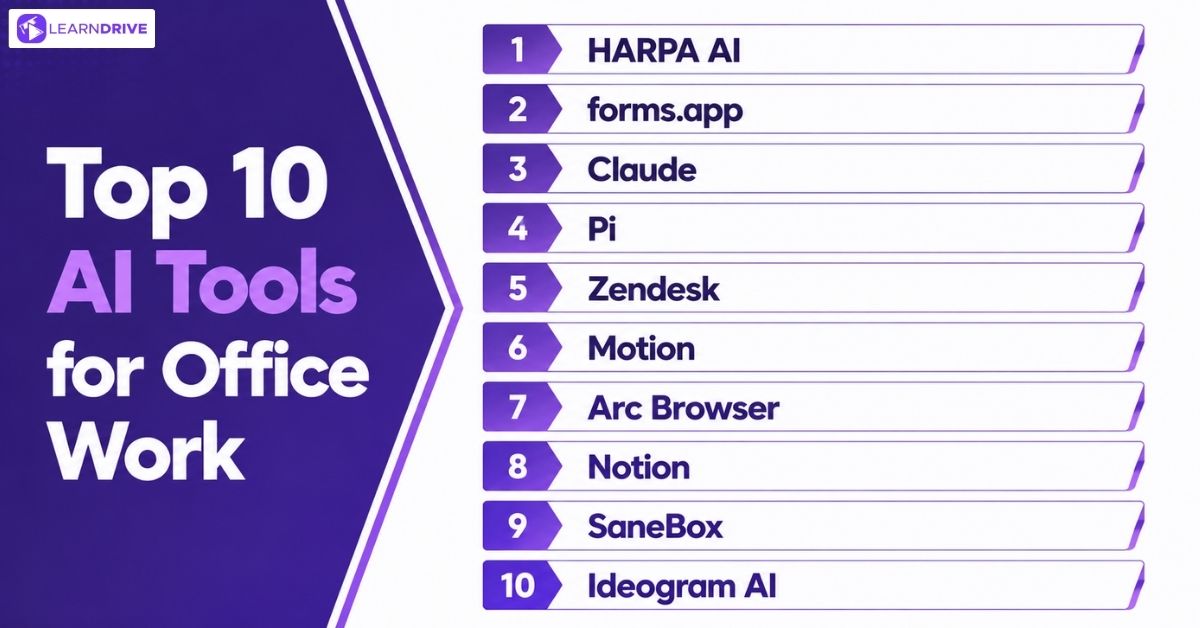
Top 10 AI Tools for Office Work
 

Top 10 AI Tools for Office Work


There is no single “best” AI tool for office work. That is because no two workdays are broken in the same way. Some people lose the most time to email overload. Others lose it to scheduling back and forth. Others lose it by switching between a dozen browser tabs just to find one thing they had open an hour ago.


The 10 tools below each solve a specific piece of that puzzle. They cover everything from inbox sorting to customer support automation to visual content creation. Go through them with your own workflow in mind. Not just the feature list. The right tool is the one that fixes the bottleneck you actually have. 


1. SaneBox

SaneBox connects to your current inbox. It works with Gmail and Outlook. It learns which senders matter most. It moves distractions into separate folders.

Purpose: Reduces daily email noise by learning your priorities, letting you focus on urgent tasks without manual sorting.

Pros: It stays inside your current app. No new interface is needed. It keeps your data private and secure.

Cons: There is no permanent free version. It only filters mail, so teams wanting automated drafting still need guidance on writing effective emails at work.

Pricing: Starts around $7/month, up to $36/month for full features.

2. Harpa AI

Harpa AI functions as a robust browser extension that integrates directly into your daily web browsing experience. It automates tedious web workflows like form filling or data entry tasks.

 Furthermore, it summarizes dense page content in seconds, allowing you to extract key insights without reading entire articles.

Purpose: Automates repetitive browser workflows like data extraction and page summarizing, saving you time on manual online research tasks.

Pros: Access is immediate within the browser. It is a powerful automation tool. It removes the need for extra apps.

Cons: Custom setups can be quite complex. Performance depends on the website. It only works inside your browser.

Pricing: Free version available; Premium plans start around $10/month.

3. Notion

Notion serves as a comprehensive workspace designed to unite your team’s knowledge and daily operations. It combines notes, complex documentation, and project tracking into a single, cohesive dashboard.

By keeping every vital piece of information in one searchable location, it eliminates the need to constantly switch between disconnected tools.

Purpose: Acts as a central team brain, organizing projects and docs into one searchable space to prevent file hunting.

Pros: It is highly customizable for teams. Collaboration is easy and fast. AI helps organize scattered notes.

Cons: Advanced features have a learning curve—though a structured Notion course for complete beginners flattens that hurdle quickly. Pages can become cluttered easily, and the mobile app is limited.

Pricing: Free tier available; Plus plan starts around $8/user/month.

4. Motion

Motion acts as an intelligent assistant specifically built for your busy calendar and task list. For professionals struggling with how to prioritise workload, it automatically builds your daily schedule by slotting in tasks based on their specific priority and deadlines.

If plans change suddenly, the system intelligently rearranges your day, ensuring your most critical objectives remain on track.

Purpose: Dynamically rearranges your daily calendar as priorities shift, ensuring your most critical tasks always get finished on time.

Pros: It eliminates scheduling conflicts automatically. It adjusts to unexpected events. It plans your entire day.

Cons: It needs full calendar access. The price is high for solo users. Some find it too restrictive.

Pricing: Starts around $19/user/month.

5. Arc Browser

Arc Browser completely reimagines how you interact with the web and organize your digital workspace. It utilizes a clean vertical sidebar to hold your tabs instead of a cluttered top bar.

You can group websites by specific projects or current contexts, creating dedicated, distraction-free spaces for every workflow.

Purpose: Organizes dozens of open tabs into clean workspaces, preventing digital clutter and keeping your project resources instantly accessible.

Pros: The interface is clean and quiet. Tab organization is superior for heavy users. AI features save time.

Cons: The layout is very different. It is limited to certain operating systems. Users may find it confusing at first.

Pricing: Free to use.

6. forms.app

forms.app leverages AI to simplify how you build professional data collection tools and surveys. You simply describe the type of form you need, and the AI generates all questions and logic structures.

This eliminates the tedious process of building surveys from scratch, allowing you to gather team data instantly.

Purpose: Quickly generates custom surveys and data-collection tools from simple text prompts, speeding up how you gather team information.

Pros: Form creation is very fast. The mobile design is excellent. The interface is simple and clean.

Cons: Advanced logic can be quite limited. The free tier has submission caps. Manual tweaks are often needed.

Pricing: Free tier available; Paid plans start around $12/month.

7. Zendesk

Zendesk utilizes advanced AI to automate and scale your entire customer service operation effectively. It handles routine customer inquiries instantly, freeing your team to focus on high-priority issues that truly require human intervention.

This shift drastically reduces response times while maintaining a high standard of personalized service for every client.

Purpose: Automates routine customer inquiry responses, allowing your team to focus on resolving complex issues without getting overwhelmed.

Pros: It scales for large support teams. Response times decrease significantly. It connects to many other tools.

Cons: Setup is complex for enterprises. It is expensive for small teams. It needs data to be effective.

Pricing: Starts around $19/agent/month.

8. Claude

Claude operates as an expert assistant for any task involving written material or complex content generation. For teams exploring Claude vs ChatGPT vs Gemini, it excels at adapting existing drafts into polished professional documents, emails, or detailed technical reports.

The system handles the heavy lifting of restructuring content, allowing you to produce polished, ready-to-use writing in a fraction of the time.

Purpose: Drafts and refines professional documents or complex reports, handling the heavy lifting of writing and content structuring tasks.

Pros: The writing sounds natural and clear. It follows complex rules very well. Outputs are safe and reliable.

Cons: Real-time web access is limited. Free usage caps are quite strict. It cannot generate images.

Pricing: Free tier available; Pro plan starts around $20/user/month.


9. Idiogram.ai

Idiogram.ai is a specialized platform among dedicated AI tools for image generation, creating hyper-realistic visuals featuring accurate, readable text. It focuses specifically on high-quality rendering for presentations, posters, and social media slides.

By mastering precise text integration, it eliminates the common design headaches of finding graphics that clearly convey your specific message.

Purpose: Instantly creates custom presentation graphics with precise text, eliminating the need to wait on designers for basic visuals.

Pros: Text integration is best-in-class. It is simple for non-designers. The output quality is high.

Cons: Free daily generations are limited. It only focuses on images. It can struggle with human anatomy.

Pricing: Free tier available; Paid plans start around $8/month.


10. Pi

Pi functions as an empathetic, highly intelligent AI assistant designed to support your daily decision-making. It serves as a sounding board during brainstorming sessions, helping you work through complex workplace problems or creative blocks.

It offers immediate, natural guidance, acting like a conversational partner that is always available to help you think through challenges.

Purpose: Offers an empathetic, intelligent sounding board for brainstorming or solving complex workplace problems when you need immediate guidance.

Pros: The interface is natural and friendly. It is excellent for brainstorming. It works on mobile platforms.

Cons: It lacks advanced technical features. It is not integrated with business workflows. It is best for casual support.

Pricing: Free to use.

10 Office AI Tool Feature Comparison


Tool

Primary Focus

Best For

Standout Feature

HARPA AI

Web Automation

Browser-based tasks and data extraction

Seamless browser-based automation

forms.app

Form Generation

Quick creation of surveys and quizzes

Rapid AI-assisted form generation

Claude

Content Adaptation

Repurposing text and complex writing

Natural content adaptation and reasoning

Pi

Conversational AI

Ideation and general workday support

Highly empathetic conversational style

Zendesk

Customer Support

Automating routine service inquiries

Enterprise-grade service automation

Motion

Intelligent Scheduling

Dynamic calendar and task optimisation

Smart calendar and task scheduling

Arc Browser

Internet Organisation

Heavy tab users and organised browsing

Distraction-free AI sidebar navigation

Notion

Workspace & Notes

Team collaboration and knowledge bases

All-in-one workspace integration

SaneBox

Email Management

Inbox decluttering and prioritising

AI-powered email organisation

Ideogram AI

Visual Creation

Graphic design with precise text rendering

Accurate text generation inside images

Learndrive.org
100+ Free
Courses
Enhance your skills — no spending required. CPDQE Accredited.

4 Ways to Choose Your Perfect AI Office Tool

 

4 Ways to Choose Your Perfect AI Office Tool


Ten tools, ten different problems solved. That is the tricky part of a list like this. It is easy to walk away wanting three or four of them at once. But only one of them is usually fixing what is actually slowing you down. Choosing the right one comes down to a few simple checks.

Start with your biggest time-waster. Match that to the right type of tool. Look at your team size and what it needs to integrate with. Then test it for real before you commit to paying. Here is how to work through each step. 


1. Identify Your Biggest Time-Waster First

Before picking any tool, track where your time actually goes for a few days. Identifying daily friction points is central to figuring out how to increase productivity in the workplace, especially since most people guess wrong about what is eating their day.

 If you’re not sure, a rough rule works: whatever task you dread doing manually every single day is usually the real bottleneck.

2. Match Tool Type to Task

Once you identify the bottleneck, your choice narrows quickly. Email overload suggests SaneBox, while scheduling chaos points directly to Motion. If scattered documentation is your issue, choose Notion. For repetitive browser work, try Harpa AI or Dia. Use forms.app to build forms quickly. High support volume is best managed by Zendesk. Claude excels at content repurposing. Need visuals? Use Idiogram.ai. For everything else, try Pi. Trying to solve two unrelated problems with one tool often leads to disappointment.

3. Check Team Size & Integration Needs

A tool that’s perfect for a solo user can fall apart at team scale, and the reverse is also true. Check whether the tool supports multiple seats, shared workspaces, and admin controls if you’re buying for a team, and check whether it connects to the apps you already use daily (email client, calendar, CRM) since a tool that doesn’t integrate just becomes one more disconnected system.

4. Test Before You Commit

Almost every tool on this list offers a free tier or trial, and that’s not optional to skip. A tool can look perfect on a features page and still not fit how you actually work day to day. Run it for a real week of normal work, not a demo scenario, before paying for a full year upfront.

Free vs. Paid — When Upgrading Is Actually Worth It

While free plans are fine when you are getting started, they eventually fall short as your reliance on the tool increases. Below is an overview of standard free-tier constraints and the key indicators that it is time to upgrade.

The Limitations of Free Tiers

Free tiers generally offer solid functionality, but they come with built-in caps. Certain platforms—like SaneBox, Motion, and Zendesk—forego free plans entirely, offering only limited trials instead. 

Other platforms, such as Notion and forms.app, place restrictions on file sizes or response volume. Ultimately, free offerings are designed for light, intermittent usage and quickly become inadequate for daily operations.

Indicators It Is Time to Upgrade

You can tell you have outgrown a free tier when several clear signs emerge:

  • Frequent Usage Caps: You regularly run into form submission limits or file upload restrictions.

  • Manual Workarounds: You spend time performing manual tasks that a paid tier automates, such as accessing Notion Business AI agents or Zendesk auto-resolutions.

  • Team Collaboration Needs: You need to add team members to a system primarily designed for solo users.

When these friction points happen consistently, upgrading typically delivers a clear return on investment through saved time.


Ensuring Data Privacy & Security with Office AI Tools

Because AI productivity apps integrate directly with your email, calendars, and file repositories, they inevitably interact with sensitive corporate information. Understanding their reach and evaluating vendors carefully is essential before granting system access.

System Access & Data Exposure by Tool

Each application handles data differently depending on its function:

  • SaneBox: Processes email headers and content via IMAP to organize your inbox, but does not retain messages on its own servers.

  • Motion: Requires calendar integration to calculate schedules and auto-assign task slots.

  • Notion: Stores all saved documents and user-created content, requiring careful management of confidential information.

  • Zendesk: Maintains customer profiles, support tickets, and interaction histories.

  • Browser Extensions (Harpa AI, Dia): Read active browser tabs and webpage content to execute automations.

  • Claude: Processes text, files, and prompts submitted directly for drafting or analysis.

While these access requirements are standard for modern software, auditing each tool’s operational scope remains a vital step.

Vendor Evaluation Checklist

Before granting access to enterprise data, evaluate the vendor’s policies against these key criteria:

  • Data Storage & Retention: Determine whether data remains on local servers or gets hosted externally, how long it is stored, and if deletion can be requested.

  • Model Training Policies: Verify whether your data is used to train AI models by default and if opting out is possible.

  • Access & Administrative Controls: Ensure team management options allow granular control over data visibility.

  • Compliance Standards: Check for necessary industry certifications, such as SOC 2 or GDPR compliance.

Reviewing a vendor’s standard security documentation and understanding is Claude AI safe or enterprise-compliant will typically answer most of these questions before you ever need to reach out to support.

Learndrive.org
100+ Free
Courses
Enhance your skills — no spending required. CPDQE Accredited.

How to Roll Out an AI Tool to Your Team Without Pushback?
How to Roll Out an AI Tool to Your Team Without Pushback

Picking the right tool is only half the job. The other half is getting your team to actually use it. This section covers how to introduce a new tool without people ignoring it or pushing back.

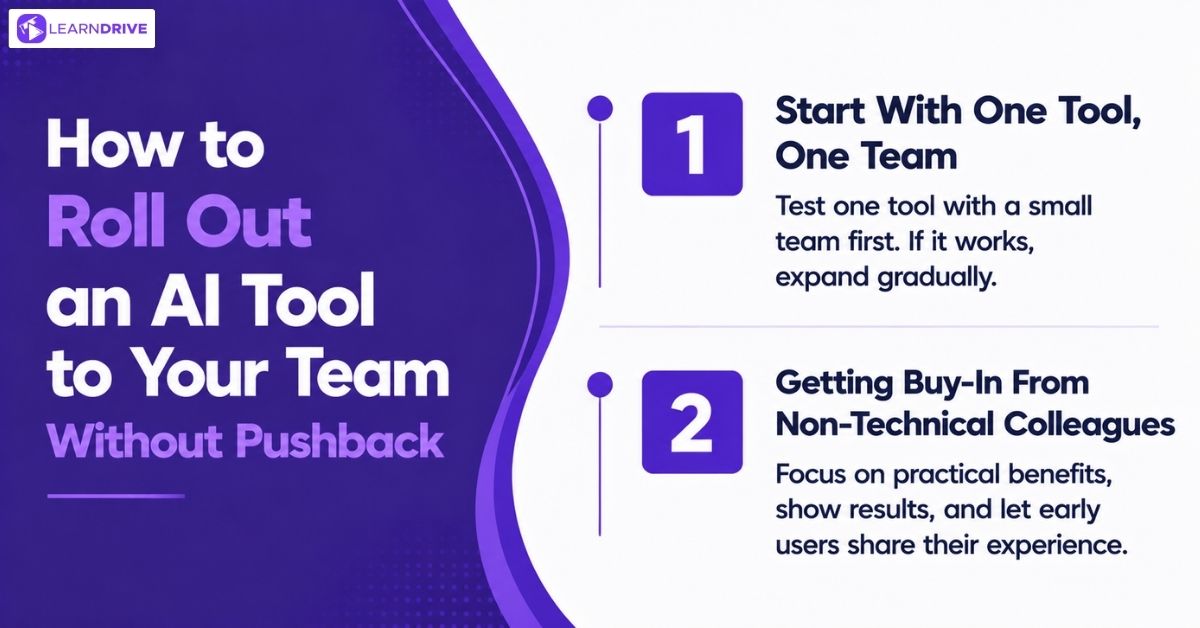
Start With One Tool, One Team

Don’t roll out five new tools company-wide at once. Pick one tool. Test it with one small team first. Give it two or three weeks before judging the results. If it works, expand from there. If it doesn’t, you’ve only wasted a small pilot, not a company-wide budget.

Getting Buy-In From Non-Technical Colleagues

Some coworkers resist new tools on principle, which can quickly strain communication in the workplace if changes feel forced. Others just don’t have time to learn something new. Explain the tool in terms of the problem it solves, not its features. Show them a before-and-after, not a feature list. Let the early pilot team share real results with the rest of the team. People trust a coworker’s experience more than a company announcement.


Common Mistakes to Avoid When Adopting AI Office Tools
Common Mistakes to Avoid When Adopting AI Office Tools

The transition to AI-assisted workflows isn’t always smooth. Even with the right software, poor adoption strategies can render powerful tools ineffective and complicate your team’s processes. 

Before rolling out new technology, familiarize yourself with these common pitfalls to avoid unnecessary friction and ensure your team actually gains the productivity improvements you’re aiming for.

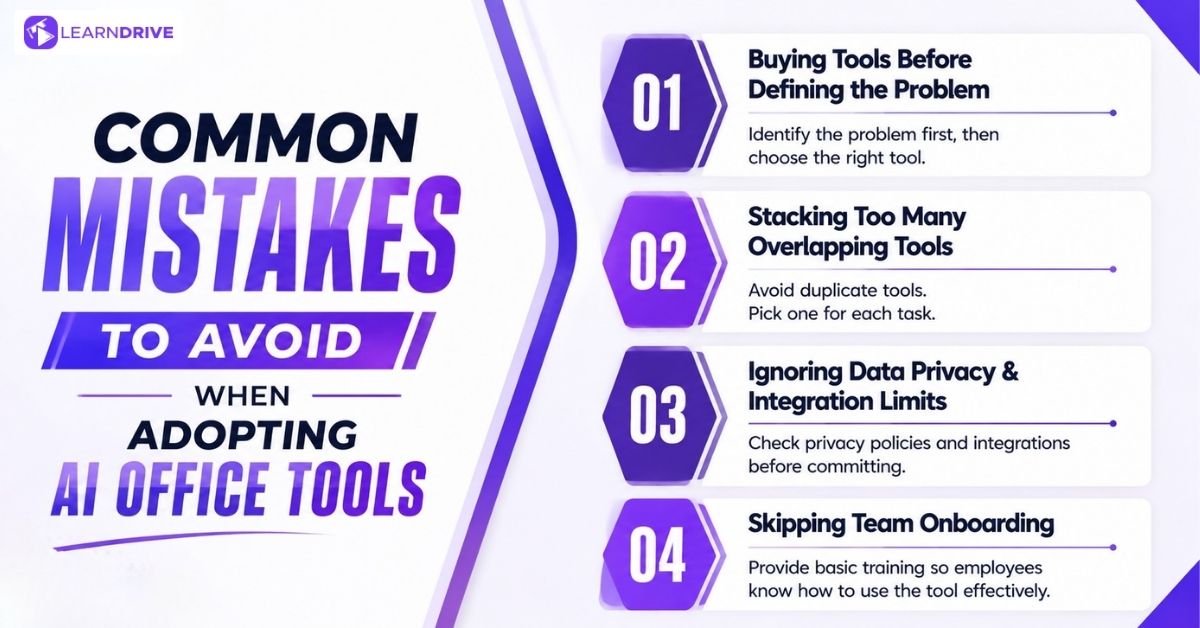
1. Buying Tools Before Defining the Problem

Some teams buy a tool because it’s popular, not because it fixes something specific. That usually means paying for features nobody uses. Figure out the actual bottleneck first. Then pick the tool that solves it.

2. Stacking Too Many Overlapping Tools

Two tools that do the same job waste money and confuse the team. Notion AI and Claude can both handle writing tasks. Harpa AI and Dia both automate the browser. Pick one per job. Cancel the rest.

3. Ignoring Data Privacy & Integration Limits

Connecting a tool to email, calendar, or customer data without checking its privacy policy is a real risk. Some tools also don’t integrate with what you already use. Check both before committing, not after.

4. Skipping the Team Onboarding Step

A tool nobody was trained on won’t get used, no matter how good it is. Even a 15-minute walkthrough increases adoption. Skipping this step is one of the most common reasons a good tool gets abandoned.


 
One-Time Payment  Best Value
The All-Access Professional Vault
1,100+ Premium Courses  |  £180 One-Time Payment
Training professional
Online Teams Training
Scale Your Team's Skills
with top-notch training
Contact Now!


Frequently Asked Questions


Yes. Many AI tools use simple instructions in everyday English. Employees can use them to write emails, organise information and complete routine tasks without coding or advanced technical knowledge.


Yes. Many AI tools offer mobile apps or mobile-friendly websites. However, some advanced features, such as browser automation and complex document editing, work better on desktop computers.


Most AI office tools require an internet connection because they process information using cloud-based systems. Some applications offer limited offline features, but AI functions generally need connectivity.

Yes. Many AI assistants support multiple languages and can help translate emails, explain documents and improve communication between international colleagues. Translation accuracy varies, particularly with technical or industry-specific language.


Yes. AI can produce incorrect figures, misunderstand instructions or leave out important details. Employees should review AI-generated contracts, reports, financial information and official communications before using them.


It depends on the tool and company account settings. Some workplace AI platforms allow administrators to access activity records, manage user permissions or review shared content. Employees should understand their organisation’s monitoring policies.


Yes. Depending on the application, AI-powered accessibility features can support speech-to-text, text-to-speech, document summarisation and written communication. These features may make certain office tasks easier for employees with different accessibility needs.


Employees can compare how long a task takes before and after introducing AI. For example, if preparing a weekly report previously took 90 minutes and now takes 40 minutes, the time saved is 50 minutes, provided the quality remains consistent.


Some AI tools can perform scheduled or rule-based tasks with minimal human involvement. However, activities involving payments, sensitive information, customer commitments or important decisions should have appropriate human oversight.


AI skills may strengthen your CV, particularly for roles involving administration, marketing, customer service and project coordination. Employers may value candidates who can use AI responsibly to improve efficiency, accuracy and everyday workplace tasks.

Final Verdict

No single tool on this list fixes everything. That’s not a weakness, it’s the point. Each one solves a specific bottleneck, from an overflowing inbox to a calendar full of conflicts to a support queue nobody can keep up with.

Start by picking your biggest time-waster, focusing on the skills employers want in the future rather than chasing the tool with the most features. SaneBox or Motion if your day is ruled by email and scheduling. Notion if information is scattered across ten places. Zendesk if customer tickets are piling up. Claude or Idiogram.ai if content and visuals eat your week.


Test one tool with a real trial before committing. Add a second only once the first is actually saving time, not just sitting in your subscriptions list. That’s the whole strategy: fix the real bottleneck first, then build the stack around it.


Related blogs 


Our popular AI courses

Picture of John Paul
John Paul
[social_share_buttons]