
How to Use Gemini in Google Sheets: Setup and Access
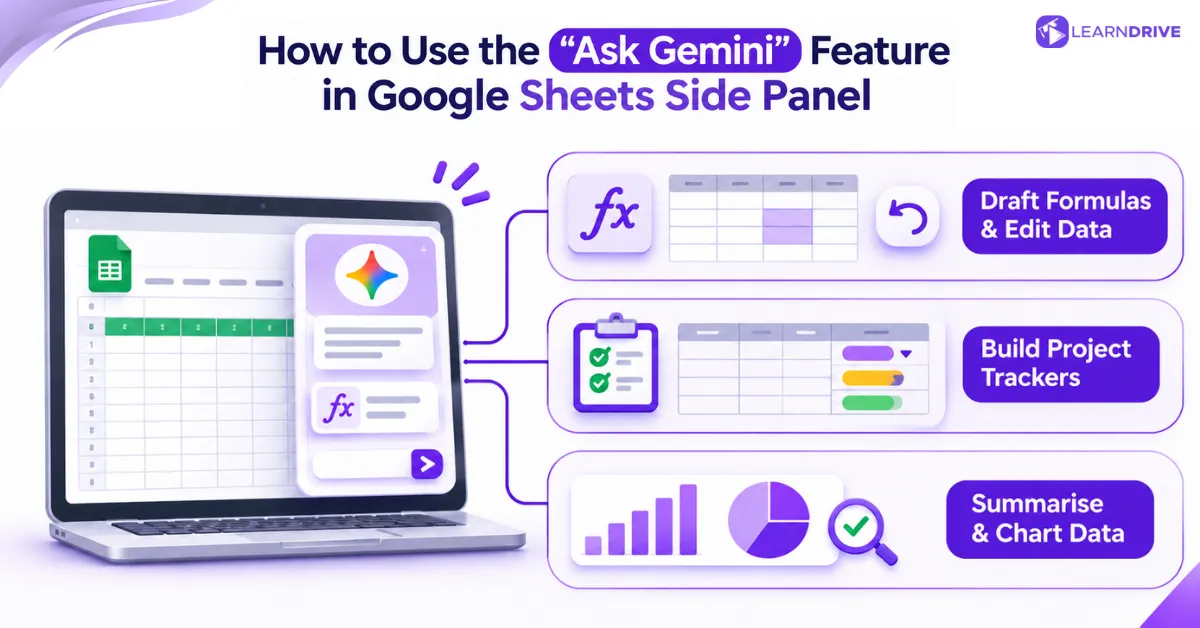
Start by checking if your account can use these tools before you plan your work. The sections below cover what you need, how to pick the right tool, and how to keep your sheet safe when working with others.
What You Need for Built-In Gemini Tools
Google states that the =AI() function requires an eligible Google Workspace or Google AI plan. Google’s help page for the AI function lists the current conditions, and Google AI Pro and Ultra accounts are among those covered.
Look for the Ask Gemini button at the top right of a sheet. If an AI function shows “not available”, your administrator’s settings or your language setting may be the cause.
Some features also appear through Google’s early-access Workspace Experiments programme. Availability can differ between accounts, so treat any tutorial screenshot as an illustration of the idea, not a promise of what you will see.
Choosing Between Gemini, ChatGPT and AI-Enabled Marketplace Add-Ons
When comparing built-in Gemini tools with the best AI add-ons for Google Sheets, check your privacy rules and how you plan to work first.
Built-in Gemini works right inside your spreadsheet, so you do not have to copy and paste. When deciding between Gemini and ChatGPT for workplace tasks, the choice usually comes down to in-sheet convenience versus broader conversational flexibility.
On a standard free account, you can still paste a description of your sheet into a free chatbot and copy the formula back. Marketplace add-ons offer in-cell functions, but they are third-party services with their own privacy terms.
A simple rule helps: if your employer already pays for Workspace with Gemini, use the built-in tools first. Reach for a chatbot or add-on only when no built-in option exists, and only with data you are free to share.
Collaborating and Saving Versions
Sheets suits shared work, because colleagues can edit the same file at once. That convenience is also why you should protect your data before an AI tool changes it.
Click File, choose Version history, and select Name current version. Give it a clear label like ‘Before AI cleanup’. In shared team environments, mastering version control alongside wider Google Workspace collaboration tools keeps colleagues from accidentally overwriting verified calculations.
How to Use the “Ask Gemini” Feature in Google Sheets Side Panel
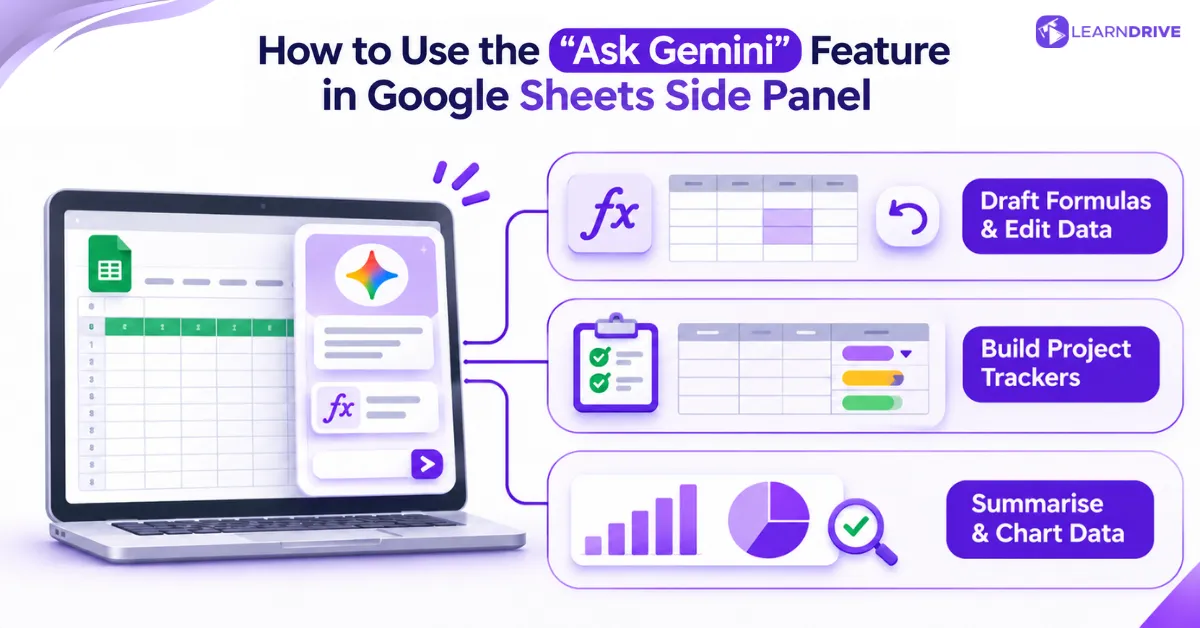
This built-in tool works like a smart chat helper right next to your sheet. Below, you will see how to write formulas, build trackers and make charts with it.
Draft Formulas and Edit Your Data with Prompts
Click Ask Gemini at the top right, then type a request. Google’s instructions for collaborating with Gemini in Sheets show prompts such as “Highlight values below 100” and requests to create charts.
Name the columns in your prompt, because Gemini cannot guess which one you mean. The panel also has an Undo button for the last Gemini action, but do not rely on it after broad edits.
Build Project Trackers and Timelines
When setting up a new sheet, a vague prompt like ‘Help me organise Google Sheets’ usually gives you a basic table that does not fit your real work.
Instead, list the exact columns you need so Gemini can build a useful table with sample data. Try: “Create a project tracker with task, owner, start date, due date and a status dropdown of Not started, In progress and Done.”
Replace the sample text with your real tasks, and test the dates and dropdowns. For teams managing multi-stage deliverables, combining spreadsheets with dedicated AI tools for project management makes it easier to coordinate deadlines and track task handoffs.
Summarise and Chart Your Data
The panel can also summarise a table or draw a chart from a prompt. Google’s examples include “Create a chart with date on the x-axis and total on the y-axis.”
Treat any summary as a draft. Check that the chart uses the right columns and that the totals match your own figures before you share it.
Google Sheets =AI() Function Examples and Smart Fill Workflows
These two tools act on cells rather than on the whole sheet. The sections below cover the function’s steps and rules, then Enhanced Smart Fill.
Using the =AI() Function Step by Step
Testing this tool in cells shows how easily it sorts text and scores customer mood. Type =AI( into a cell, put your prompt in quotes, and add the cell range you want it to read. The format is =AI(“prompt”, [range]), and =Gemini() works the exact same way.
For example, =AI(“Classify this comment as Positive, Neutral or Negative. Reply with one word only.”, B2) rates one customer comment. Select the cells, click Generate and insert, then review each answer.
7 Rules and Limits of the =AI() Function
Google’s official help pages list clear rules for how this function works:
1. Syntax and Aliases: Write the formula as =AI(“prompt”, [range]). You can also use =Gemini() as an exact match.
2. Workspace Eligibility: You need a qualifying Google Workspace business or enterprise plan, or a Google AI plan (including Google AI Pro and Ultra).
3. Range Concatenation Rules: To join your prompt with text from more than one cell, link them with the ampersand sign (&), like =AI(“Summarise feedback for ” & A2, B2). To check a row of cells sitting next to each other, enter the range directly (such as A2:D2).
4. Text-Only Outputs: The formula only gives back text. It cannot produce numbers for sums, style charts, or build pivot tables.
5. Unsupported Nested Formulas: You cannot put =AI() inside another formula, so =IF(AI(…)) or =SUM(AI(…)) will not work. Put the AI text result in its own helper column first, then point your other formulas at that helper cell.
6. Scoped Context: The AI only sees the exact cell or range you put inside the brackets. It cannot read other tabs, the rest of your workbook, or your Google Drive files.
7. Generation Limits & Caching: You can run the function on up to 350 selected cells at once, and hitting long-term usage limits can mean waiting 24 hours.
Results do not update on their own when your source cells change, and normal Undo or Redo buttons do not work on them.
Once you check the generated text, copy the cells and use Paste values only (Ctrl+Shift+V) to lock the answers in place so they do not get overwritten by mistake.
Enhanced Smart Fill Google Sheets for Pattern-Based Tasks
This tool spots patterns between side-by-side columns and fills in blank cells based on your examples. People often use it to tag feedback by topic or clean up messy text.
You can accept or reject each suggestion. Google’s Enhanced Smart Fill page explains the controls, so test it on a small block before trusting a whole column.
How to Generate Formulas with AI in Google Sheets?
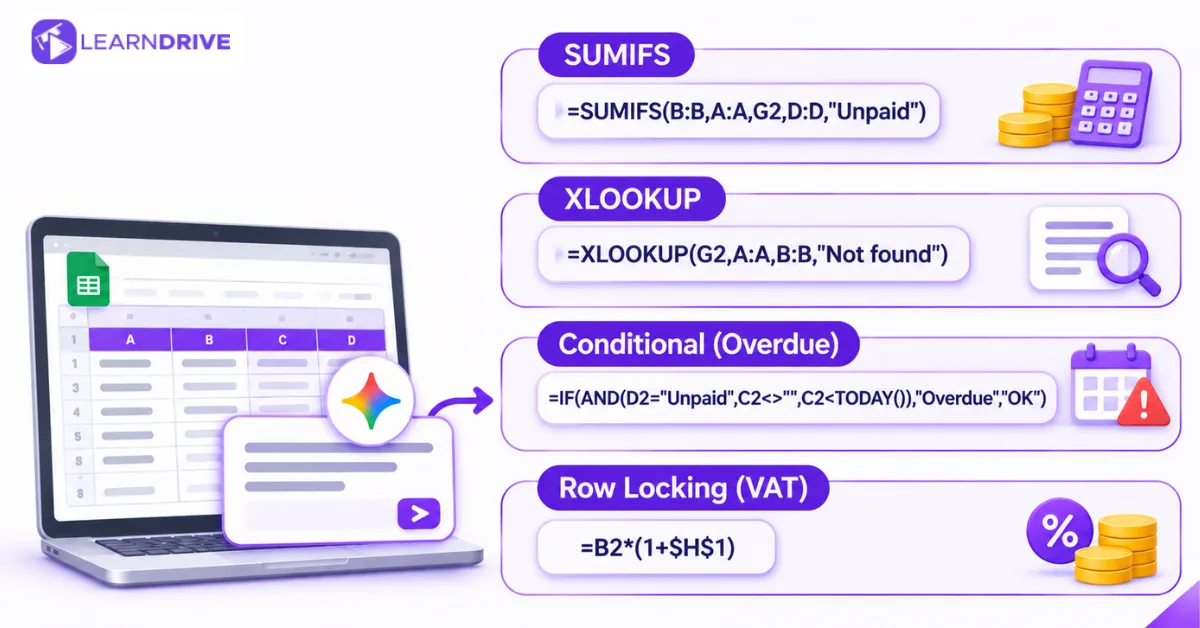
Getting the right maths starts with a clear prompt that leaves no guesswork. State what each column holds, how the data looks, and where you want the answer to go.
The worked examples below use a small invoice tracker. Client names sit in column A, net amounts in B, due dates in C and status (Paid or Unpaid) in D, from row 2.
SUMIFS prompt: “I use Google Sheets with UK settings. Add up the amounts in column B for the client named in G2 where column D says Unpaid.” A suitable answer is =SUMIFS(B:B,A:A,G2,D:D,”Unpaid”).
XLOOKUP prompt: “Find the client in G2 within column A and return the amount from column B. Show Not found if there is no match.” The result should resemble =XLOOKUP(G2,A:A,B:B,”Not found”).
Conditional prompt: “In E2, show Overdue if the status is Unpaid and the due date has passed. Ignore rows with no due date.” A careful answer is =IF(AND(D2=”Unpaid”,C2<>””,C2<TODAY()),”Overdue”,”OK”).
That blank-cell condition matters. Without it, an empty due date counts as zero, which is earlier than today, so Sheets would wrongly flag the row.
Row locking matters too. If your VAT rate sits in H1, write =B2*(1+$H$1) so the formula keeps pointing at H1 when filled down. Without the dollar signs, the reference drifts to H2, H3 and beyond.
Practical Workflows for Admin, Data Entry and Client Reporting
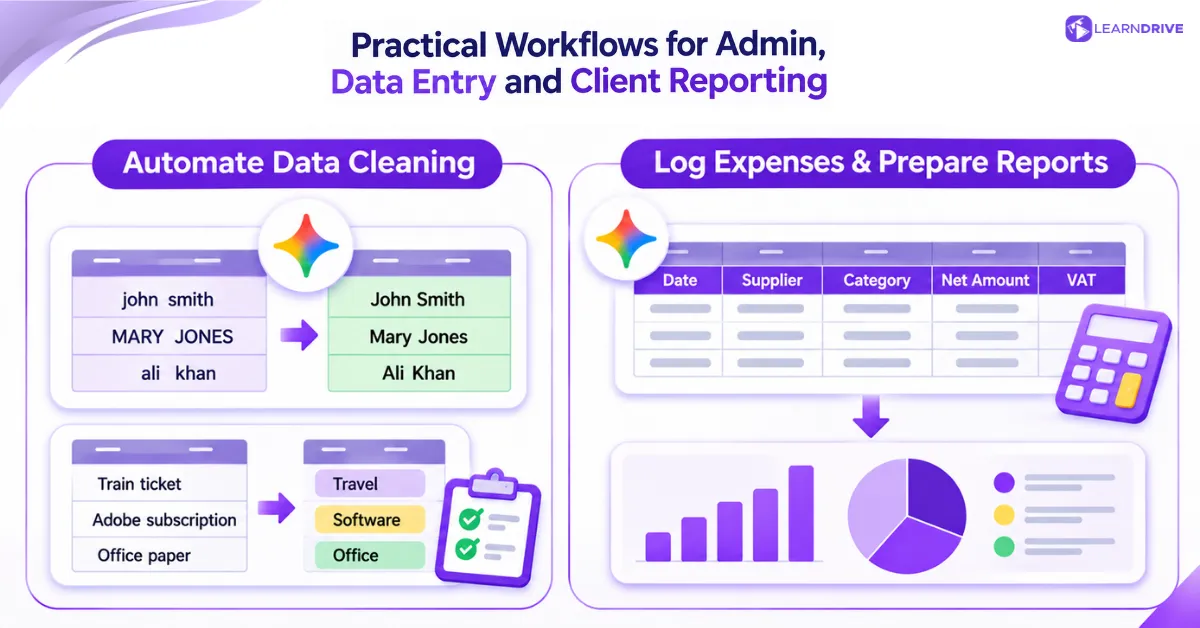
Routine admin is where AI saves the most time. The sections below cover cleaning data, then logging expenses and preparing client reports.
Automate Data Cleaning in Google Sheets with Intelligent Prompts
A common workplace workflow is using prompt-based tools to replace manual find-and-replace steps. Ask the side panel to tidy a column, for example: ‘Convert the names in column A to title case and remove extra spaces.’
For text categories, try =AI(“Categorise this expense as Travel, Software, Office or Other. Reply with one word only.”, B2). Fill it down to sort a column of descriptions.
Always keep the original column beside the cleaned one. Comparing them quickly reveals any unwanted changes.
Log Expenses and Prepare Client Reports
A clean expense sheet needs a date, supplier, category, net amount, and VAT column. Gemini can build the layout, and you can ask for a quick breakdown by category. A prompt like ‘Create a table of total net spend by category’ gives you a neat starting point.
Organizing clean expenditure records and preparing summary reports is a fundamental skill in modern virtual assistant and administrative workflows. Always double-check every calculation before sending a final sheet to a client.
Google Sheets AI Limitations and Data Privacy in the UK
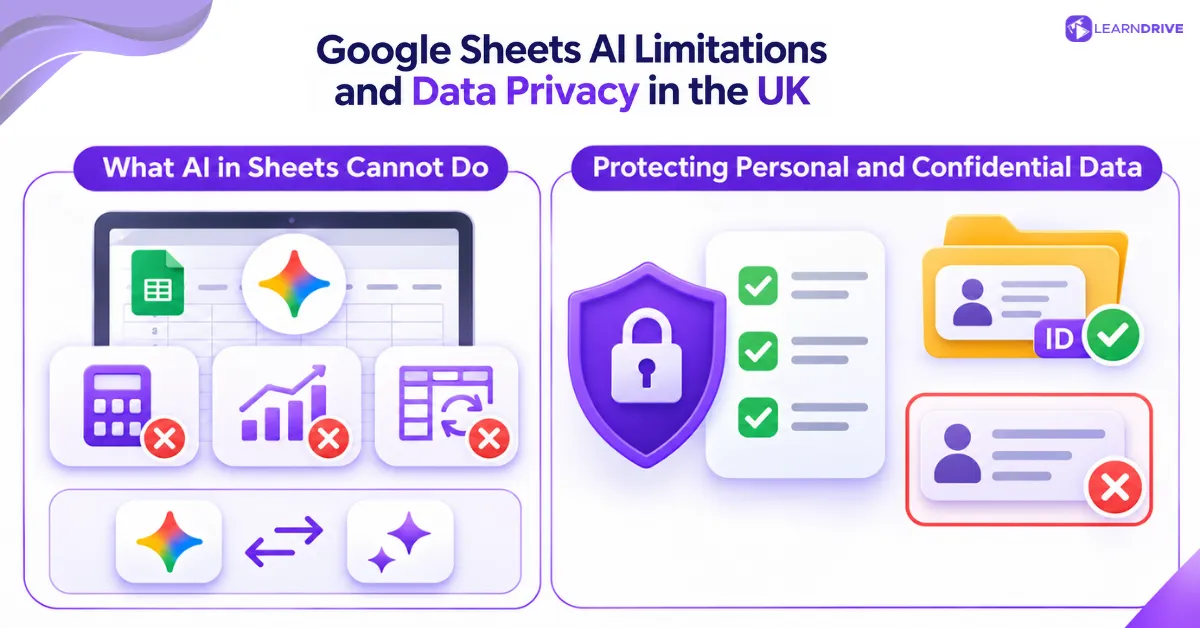
Knowing these tool limits and legal rules is vital before you use AI on work spreadsheets. AI in Sheets is helpful, but it has clear limits. The sections below explain what it cannot do and how to follow UK data privacy rules.
What AI in Sheets Cannot Do
The =AI() function cannot return numbers you can calculate with, and it cannot create charts or pivot tables. For sums, lookups and conditions, regular formulas remain the dependable choice.
AI answers can also vary between runs, so the same prompt may not give identical results tomorrow. Google itself says Gemini features may suggest inaccurate information.
Protecting Personal and Confidential Data
Is it safe to put customer records into an AI add-on? Only if your workplace has approved the tool and your data is kept safe.
Under UK GDPR rules from The ICO, businesses act as data controllers and stay legally responsible for any personal data they pass to AI tools.
Core legal rules—like using data only for its set purpose, sharing as little data as possible, and not keeping it longer than needed—still apply to spreadsheets. Under the Data (Use and Access) Act, companies must make sure outside add-ons do not save or reuse private records.
Never paste real customer names, pay records, or personal details (PII) into an unapproved add-on.
Swap names for ID codes, delete private columns before running AI, and check the tool’s privacy settings with your IT or data protection lead before installing it.
Top 5 Online Courses to Learn AI-Powered Google Sheets in 2027
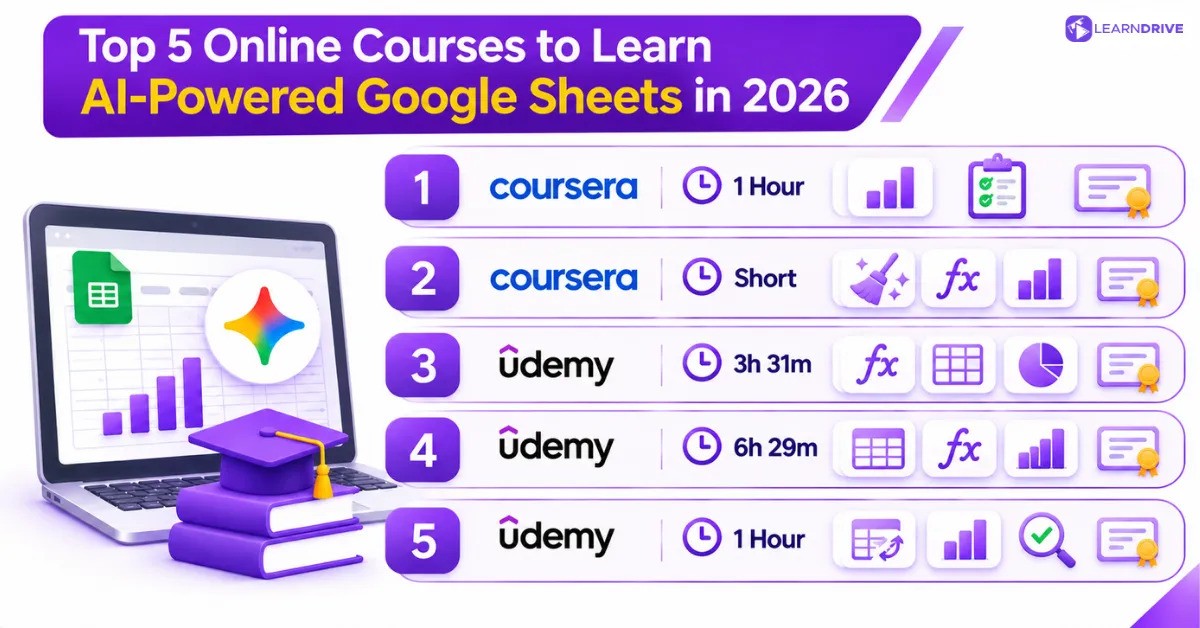
Prefer a quick Gemini taster or a full spreadsheet grounding? The best online courses to learn AI-powered Google Sheets cover both, and they range from about one hour to about six and a half hours.
Each pick below lists its length, price , strengths and limits, so you can match it to your skills.
1. Gemini in Google Sheets — Coursera
Gemini in Google Sheets by Google Cloud Training introduces Google’s AI tools for everyday spreadsheet work. Beginners learn how to use Gemini to build project plans, set up trackers and tidy tables with simple prompts.
The course takes about one hour and includes hands-on tasks and a short quiz.
Why it stands out: Short, beginner-friendly training made by Google Cloud that focuses right on Gemini in Google Sheets.
Pros: Easy for beginners; focuses directly on Gemini; hands-on sheet tasks; gives you a shareable certificate when you finish.
Cons: Covers only the basics; full access costs money; not built for deep data analysis.
2. AI for Data Analysis — Coursera
AI for Data Analysis from Google Career Certificates shows workers how to clean messy data, write formulas with Gemini in Google Sheets and build clear charts.
The course focuses on everyday business numbers, helping you turn sheet data into useful findings without needing coding skills.
Why it stands out: Mixes AI formula writing, data cleaning and clear reporting in one short course.
Pros: Built by Google; hands-on practice; friendly for beginners; useful for real office data work.
Cons: Quite short; does not go deep into advanced stats; full access and certificates depend on how you sign up.
3. Advanced AI-powered Google Sheets Course: Be a Pro — Udemy
Advanced AI-powered Google Sheets Course: Be a Pro mixes core spreadsheet skills with Gemini AI. You practise formulas, VLOOKUP, PivotTables, charts, data cleaning and AI tools for managing sheets.
The 3-hour, 31-minute course includes real examples, homework tasks and practice exercises for beginners and office workers.
Why it stands out: Weaves Gemini AI tasks into wider Google Sheets lessons instead of treating AI as a separate add-on.
Pros: Hands-on AI practice; wide coverage of Sheets tools; easy for beginners; includes tasks and quizzes.
Cons: Some lessons cover very basic steps; less useful for skilled analysts who want deep AI automation.
4. Google Sheets Course: Free Online Spreadsheet with AI — Udemy
Google Sheets Course: Free Online Spreadsheet with AI gives you full training in Google Sheets, covering formulas, IF functions, data cleaning, PivotTables, charts and Google Gemini AI.
With about 6 hours and 29 minutes of lessons, this course suits beginners who want a strong base in Sheets before using AI for daily work.
Why it stands out: Pairs thorough spreadsheet lessons with a gentle starter guide to Gemini AI.
Pros: Wide topic list; clear beginner lessons; useful formula examples; covers data cleaning and reports.
Cons: AI is only one small part of the course; takes longer than quick AI courses; not ideal if you only want Gemini tips.
5. Google Sheets Data Analysis: Pivot Tables and Gemini AI — Udemy
Google Sheets Data Analysis: Pivot Tables and Gemini AI focuses on using Google Sheets for business reports and data checks. It covers SUMIFS, COUNTIFS, PivotTables and using Gemini to check formulas.
The one-hour course helps you sort business data, track key numbers and double-check sheet maths.
Why it stands out: Focuses on everyday business numbers and shows how to use Gemini to check formulas and write summaries.
Pros: Short lessons; useful reporting skills; includes Gemini tips; helpful ways to check formulas.
Cons: Helps to know basic Sheets first; does not cover every Gemini feature; less detailed than longer courses.