
How Can You Use AI to Generate Excel Formulas and Analyse Data?
You can use AI to generate Excel formulas by describing the result you want in plain English, naming the relevant columns and stating your Excel version. The AI returns a formula that you paste into a cell and test against figures you already know.
Generating a formula and asking AI to interpret data are different jobs. A formula is a reusable rule that Excel recalculates automatically, whereas an AI analysis is a one-off reading of your data, such as a summary of customer comments.
Formulas are easier to audit because every step is visible. Summaries and classifications are harder to verify, so sample them against the original rows before you rely on them.
The table below matches common tasks to suitable AI options and shows what to check afterwards.
Getting Started with AI in Microsoft Excel

Three routes cover most needs: the Copilot side pane inside Excel, an external chatbot, and a third-party add-in. The sections below explain Copilot and ChatGPT first, then show how to prepare your data so any of them performs well.
Using Microsoft Copilot in Excel
Copilot in Excel can suggest and explain formulas, add formula columns, and summarise or classify data. You open it from the Copilot button on the Home tab of the ribbon.
Microsoft’s formatting guidance says your data should be an Excel table or a supported range, and the file should sit on OneDrive or SharePoint. If the Copilot button is greyed out, save the file to the cloud first.
Access depends on your Microsoft 365 plan and licence. Requirements and prices change, so check Microsoft’s current UK pages or ask your IT team before assuming you have it.
Microsoft retired the experimental =COPILOT() worksheet function on 14 September 2026, according to Microsoft Support. It was only ever a preview feature for Insider and Frontier users, and the Copilot side pane remains the supported route for similar tasks.
Using ChatGPT to Generate Excel Formulas
ChatGPT, Claude and Gemini run outside Excel, so you copy their formulas in and test them yourself. Their main advantage is access, because anyone with a browser can try them, including people on older Excel versions.
Give the chatbot your column letters, a few made-up example rows and the logic you need. State your Excel version too, because XLOOKUP and FILTER do not exist in Excel 2016 or 2019.
Paste the formula into a cell, press Enter and compare the result with a figure you calculated by hand. If an error appears, copy the exact message back into the chat.
Third-party add-ins sit between the two routes by placing a chatbot inside Excel. Some AI vendors offer their own and independent developers sell others, but your IT team should approve any add-in before you install it.
Choosing between assistants is a separate question. LearnDrive’s comparisons of Claude vs Gemini and Perplexity vs ChatGPT explain how they differ at work.
Preparing Your Spreadsheet for AI Analysis
Clean structure matters more than clever wording. Use one header row, unique column names, no merged cells and no blank rows or columns, which mirrors Microsoft’s supported-range rules.
Next, look for gaps and inconsistencies, such as dates stored as text or the word “none” typed into a number column. These cause #VALUE! errors and misleading summaries.
The tutorial that follows uses a made-up table of office products. Product sits in column A, Units Sold in B, Selling Price in C and Cost Price in D.
How to Use AI in Excel Formulas: 4 Simple Steps
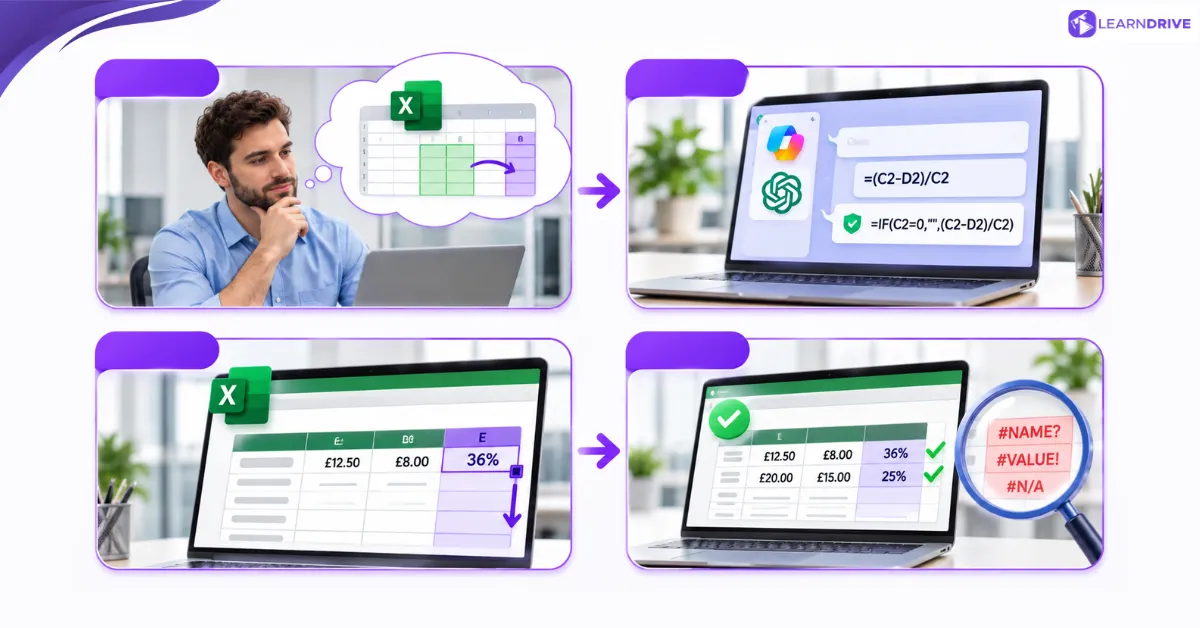
These four steps work with Copilot or any external chatbot. Each builds on the last, following one profit-margin example from request to verified result.
Step 1: Describe the Excel Calculation in Plain English
State what you want to calculate, name the columns involved and describe the result you expect. A vague request such as “work out profit” invites guesswork.
Strong prompts contain four ingredients: exact cell or column references, the type of data, the logic or condition, and your Excel version.
Prompt: I use Microsoft 365 Excel in the UK. Column C holds selling prices and column D holds cost prices, both in pounds. Write a formula for cell E2 that returns profit margin as a percentage of the selling price, and explain how it works.
Step 2: Generate the Formula Using AI
Paste the prompt into the Copilot side pane or your chatbot. A good answer returns =(C2-D2)/C2 and explains that it subtracts cost from price, then divides by price.
Ask what happens if a selling price is blank or zero. A safer version is =IF(C2=0,””,(C2-D2)/C2), which leaves the cell empty instead of showing #DIV/0!.
In Copilot, you can also ask for a formula column and select Insert column, as Microsoft Learn’s training module describes. Menu labels change as Microsoft updates Copilot, so follow the on-screen prompts.
Step 3: Apply the Formula to Your Spreadsheet
Click cell E2, paste the formula and press Enter. Double-click the fill handle, the small square at the bottom-right corner of the cell, to copy the formula down the column.
Format column E as a percentage from the Home tab. With a selling price of £12.50 and a cost price of £8.00, E2 should show 36%.
Check that references moved with each row, so E3 refers to C3 and D3. If your data sits in an Excel table, the formula usually fills down automatically.
Step 4: Verify and Troubleshoot the Results
Compare two or three rows against a calculator. A £20.00 selling price with a £15.00 cost price should return 25%.
If a result is wrong, identify the error type first:
#NAME? often means Excel does not recognise a function, which can point to an invented or unsupported name.
#VALUE! usually means text sits where a number should be, such as a price stored as text.
#N/A means a lookup found no match.
Semicolons between arguments suggest the AI used a regional format, whereas UK settings normally use commas.
Then refine the prompt. Quote the error, say what went wrong and give the expected answer, for example: “E2 returns #VALUE!. Some prices in column C are text. Revise the formula and show 36% for row 2.”
4 Common Problems When Using AI in Excel and How to Fix Them
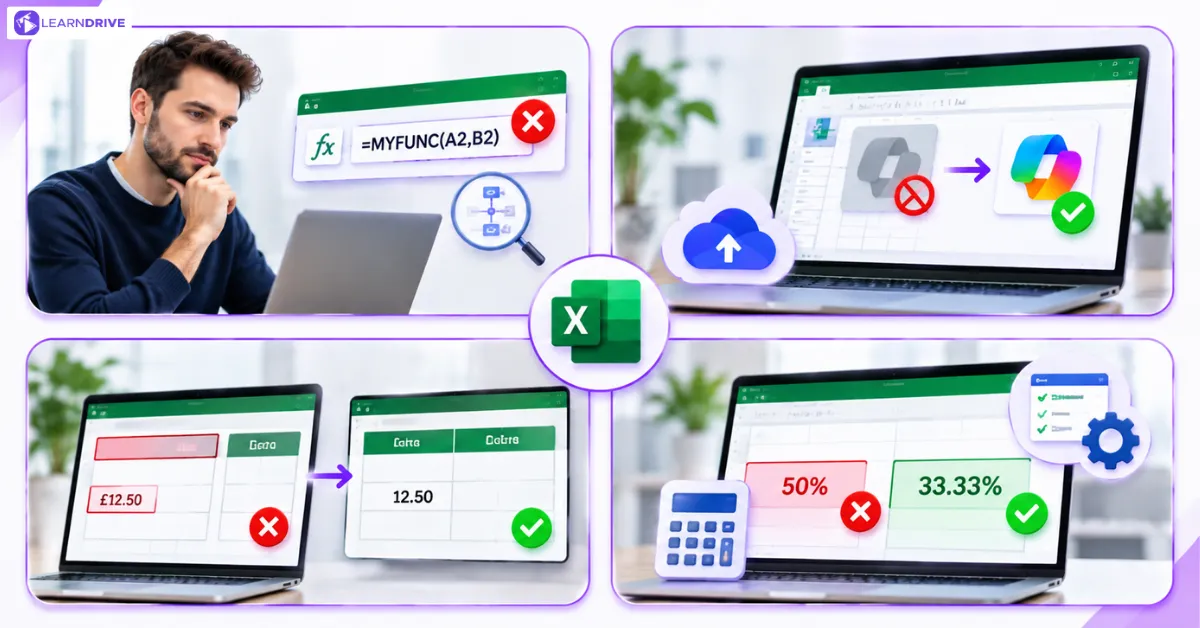
Most failures fall into four patterns. Each section below gives the likely cause and a quick fix.
AI Generates an Incorrect Excel Formula
Common causes are an invented function name, wrong separators or references that do not match your sheet. Type the function name into a cell and see whether Excel’s autocomplete offers it.
Next, use Evaluate Formula on the Formulas tab to step through the calculation. Then re-prompt with the exact error message and your Excel version.
Copilot Is Missing or Unavailable in Excel
Check that your Microsoft 365 plan includes Copilot, update Excel and save the file to OneDrive or SharePoint. Format your data as a table too.
Managed work devices may block Copilot, so ask your IT team. If you are searching for the =COPILOT() function, it no longer exists.
AI Misinterprets Spreadsheet Data
Merged cells, duplicate headers and numbers stored as text are the usual culprits. Fix the structure first, then repeat the request using column names exactly as they appear.
AI Outputs Do Not Match Expected Calculations
Recalculate a sample by hand and check rounding. Confirm that calculation is set to Automatic under Calculation Options on the Formulas tab.
Also check definitions, because AI may return markup (profit divided by cost) when you want to know margin (profit divided by selling price).
How to Use AI in Excel Safely and Accurately

Three habits protect both your results and your employer: verifying calculations, protecting data and reviewing conclusions. Accountability stays with you, because you, not the AI, answer for the numbers.
Check Important Formulas and Calculations
Never rely on AI alone for payroll, VAT, pensions or compliance reporting. Cross-check with a second method, test edge cases such as zero, blank and negative values, and use Trace Precedents on the Formulas tab.
Auditing a formula requires an understanding of relative and absolute references and how each function behaves.
Protect Sensitive Workplace and Customer Data
UK GDPR applies when you enter personal data into an AI tool. The ICO has said data protection law applies to generative AI, and its eight questions for developers and users include lawful basis, transparency and security risk.
Names, email addresses, salaries and customer IDs in a spreadsheet are often personal data. Replace them with dummy values, delete identifying columns or use only tools your employer has approved.
Check your organisation’s AI policy before pasting anything; reviewing how confidentiality in the workplace applies to digital tools ensures sensitive records remain secure. Enterprise tools such as Copilot may run under your employer’s Microsoft 365 security settings, but your IT or data protection team decides what is permitted.
This section is general information about UK data protection law, not legal advice.
Review AI-Generated Conclusions Before Making Decisions
Treat an AI summary as a draft, not evidence. Check the source rows, ask which assumptions it made and record how you verified the figures.
Microsoft’s own training material tells users to review, edit and verify anything Copilot creates. You remain accountable for whatever you present to colleagues or clients.
How to Improve Your Excel and AI Skills for Work
Practise on small, safe datasets and attempt the logic yourself before asking AI. Good projects include a sales tracker, a budget calculator and a customer-feedback dashboard.
These skills apply across administration (expense logs and rotas), marketing (campaign reports), finance (variance and VAT checks) and small-business operations (stock and invoices). Pairing everyday Excel practice with broader career advancement strategies helps position spreadsheet fluency as a tangible workplace asset.
For structured practice, LearnDrive’s Excel Training: Advanced Tricks & Techniques helps build confidence with complex logic and formula verification.
A CPD course certificate demonstrates completed learning on a CV, LinkedIn profile or appraisal conversation, though it differs from a qualification on GOV.UK’s regulated qualifications register.
To understand how employers evaluate non-regulated training across different sectors, explore our guide on whether online course certificates are recognised in the UK.